Green Screen Background Hex Code
Ever needed to replace a complex background with a solid color in editing? Meet the versatile Green Screen Hex Code, your key to user-friendly color correction and layered design. This six-digit code, spanning from #00 to #FF in RGB, shrouds objects in a uniform tint, enhancing your digital creations with professional finesse.
The Green Screen Hex Code, a background specialist, enables selective editing, pocketing unwanted elements for seamless removal against its lush color. It's the digital artist's unsung hero, rendering scenes cinematic, isolating subjects, and generating undeniable visual appeal.
Understanding the Hex Code
The Green Screen Hex Code (#3D4043) is a prominent player in post-production, offering noticeable quality in color correction and transitioning. It's a Lustre Green, providing a deep, rich hue to digitally manipulated content.


But why green? Light skin only reflects non-green colors, a boon for editing, as the hue's absence in flesh tones promotes seamless color replacement.
RGB Values
This code's RGB values, (51, 52, 59), are key to understanding its tone. RGB, listing Red, Green, and Blue in decimal integers, represents maximum color output with '0' designating no color and '255' complete saturation.

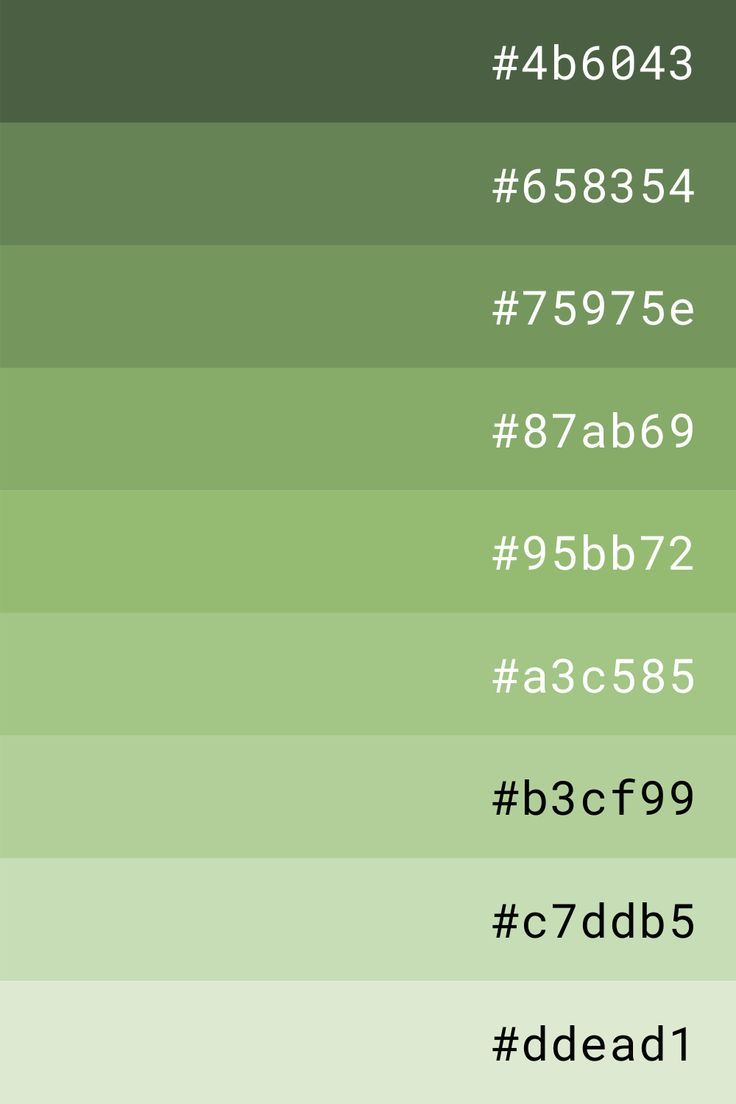

In our case, 51, 52, 59, signifies a muted, almost ashen green, derived from near-equal parts of red and blue with slightly lower green.
Its Role in Digital Media
The Green Screen Hex Code empowers filmmakers, designers, and editors, facilitating their craft with its precise, customized color. It serves as a visual balm, smoothing out imperfections and lending cinematic flair to content.
Transitions become smoother, effects feel more natural - its versatility is a playground for creative exploration, limited only by imagination.


Mastering the Green Screen Hex Code
Proficiency in this technology requires practice, but it's a rewarding skillset. With the right software and a basic grasp of color theory, you could be swapping backgrounds and isolating subjects like a pro.
Experimenting with different software plugins like Premiere Pro's standard 'Keying' tool, or After Effects' 'Keylight', assist in mastering this technique.
lesser Known Tricks
Did you know? Lighter shades of color boost clarity in keying, helping isolate subjects from their background. Likewise, adjusting the mode and tone of the green screen can enhance final output.


Huffing and puffing can even create useful results. Software like PowerDirector can create a 'smoke' effect, counteracting lighting inconsistencies for better overall keying.
Tips for the Best Key Results
Using a tripod during shooting evens out your greens, eliminating flicker. Similarly, ensuring a balanced, even lighting on your green minimizes color inconsistencies, creating impeccable keying results.
Shooting farther away from the green screen reduces the strain on your keying tools, as over fifteen feet, the screen reads as a flat, even color. Moreover, blur out background elements for heightened key precision.
Lastly, breathe easy –-upping your game with the green screen hex code is a journey. Each challenge vanquished only brings more satisfaction and growth as an editing adept.
Related Articles
Green Screen Background Color Code: The Perfect Shade
In the realm of visual effects and video production, the green screen technique is a staple, enabling filmmakers and content creators to transport their...
Green Background Hex Code
The vibrant color green, often associated with nature and growth, has its own unique place in the digital world, particularly in the realm of website design...

Dark Green Background Code
A dark green background can add a sense of sophistication and elegance to your web design, making it an appealing choice for various applications. But how do...
Decoding Green: Binary Code Backgrounds
A green binary code background, while seemingly unusual, can be a striking choice for web design, offering a modern, eco-friendly aesthetic with a touch of...
Light Green Background Code
Ever desired to add a certain touch of nature to your design projects? A light green background might just do the trick. Not only does it evoke a sense of...

"Master All Green Screen Videos
A green screen, a staple in filming and production, has emerged as a powerful tool for video creation and manipulation. This visual effects technique uses...